How to Record Gameplay and Yourself at the Same Time Without Lag

Learn how to record gameplay and yourself at the same time without lag using optimized settings and smart tools. This guide shows you how Insights Capture lets you record your screen and webcam together in smooth 1080p or 60 FPS, perfect for YouTube, Twitch, or highlight videos.
Ever wondered how to record gameplay and yourself at the same time without lag? Whether you're creating YouTube videos, streaming on Twitch, or saving highlights to share later, capturing both your screen and your reactions makes your content more authentic and engaging. However, achieving smooth gameplay while recording everything simultaneously can be tricky, especially if your gaming PC isn't properly optimized.
This step by step guide walks you through everything you need to know to record gameplay and yourself simultaneously, reduce lag, and keep your footage looking clean and professional.
Why Recording Both Can Cause Lag
When you record gameplay and your camera at once, your computer has to handle multiple demanding tasks simultaneously:
- Running the game (which uses your CPU and GPU)
- Capturing the gameplay feed
- Recording your webcam video
- Encoding both into one file while maintaining stable FPS
If your hardware or recording settings aren't optimized, you'll end up with dropped frames, laggy footage, or delayed audio. The goal is to balance quality and performance without overloading your system.
See more: What FPS Should I Record at Gaming: 30, 60, or 120 FPS Explained
Why Is My Screen Recording So Laggy?
Four causes explain almost every laggy recording, whichever screen recorder you use:
- Software (CPU) encoding. If your recording software encodes on the CPU while the game also needs it, both stutter. The fix is GPU acceleration — see below.
- The wrong Windows setup. Game Mode disabled, hardware acceleration turned off, or a stack of background apps eating your system performance.
- Disk space and drive speed. Recording to a nearly full drive or an old HDD causes frame drops no settings menu can fix — record to an SSD with 20–50 GB free.
- Outdated graphics card drivers. Encoder improvements ship in driver updates constantly; a six-month-old NVIDIA or AMD driver can be the entire problem.
GPU Acceleration: The Single Biggest Lag Fix
Modern GPUs include dedicated encoding hardware — NVIDIA NVENC on any recent NVIDIA graphics card, AMD AMF/VCE, and Intel Quick Sync. Hardware acceleration moves the recording workload off your CPU onto silicon built for encoding tasks, which is why gameplay recording with GPU acceleration costs only 2–5% performance instead of 20%+. Whatever game recording software you choose, turning on the hardware encoder is the first setting to check. Recording without lag is mostly this one decision.
Step-by-Step Guide: How to Record Gameplay and Yourself at the Same Time Without Lag
Step 1: Check Your Hardware
Before recording, make sure your gaming PC can handle multitasking.
- CPU: A recent multi-core processor (like AMD Ryzen 5 or Intel i5/i7) is ideal.
- GPU: A dedicated graphics card (NVIDIA or AMD) to offload encoding tasks.
- RAM: At least 16 GB recommended for modern games and simultaneous capture.
- Storage: Use SSDs to avoid recording stutters from slow read/write speeds, and keep disk space free.
Tip: Close unnecessary background programs and enable Windows Game Mode to free up resources before you hit record.
Step 2: Use the Right Recording Software
When recording gameplay and your face at the same time, you need a game recorder that's optimized for performance, not just raw quality. That's where Insights Capture comes in.
Insights Capture by Insights is a game recording software designed specifically for gamers who want smooth recordings without system lag. It uses hardware-accelerated encoding (NVIDIA NVENC and AMD encoders) to take the pressure off your CPU, letting your game run at full performance while it records in the background.
{{button}}
You can capture your gameplay and webcam feed simultaneously, adjust your FPS settings, resolution, bitrate, and encoder, and even choose from Performance, Balanced, or Quality presets depending on your setup. This means you can record your gameplay in high definition without dropped frames, even during intense moments.
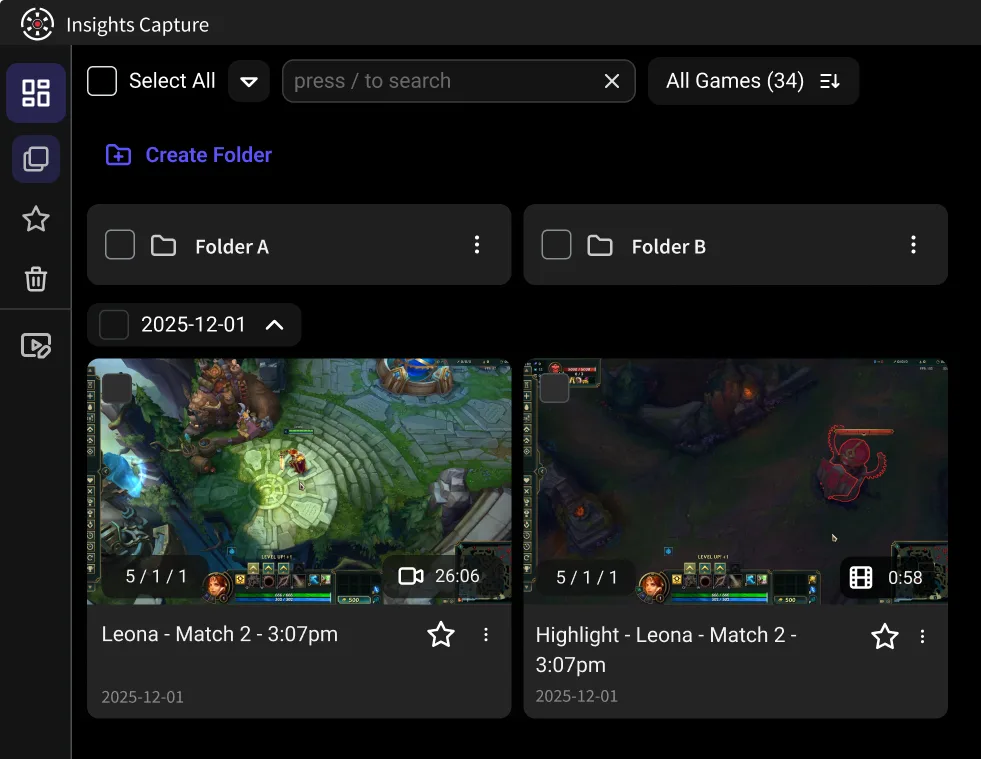
Everything you record is automatically saved and organized within the Insights.gg platform, so you can instantly review, trim, and share your best moments right after recording.
Step 3: Optimize Your Recording Settings
Recording at max quality might look amazing, but it can overload your PC. Start with these balanced recording settings:
- Resolution: 1080p (1920×1080)
- Frame rate: 60 FPS for smooth motion
- Bitrate: 8000–10000 kbps
- Encoder: Hardware (NVENC / AMD VCE / Intel Quick Sync)
- Audio: capture game sound and your microphone on separate tracks if your software supports it — it makes editing dramatically easier and background noise fixable.
Should you record at 60 or 120 FPS? For most creators, 60. Recording at 120 FPS isn't bad for your PC, but it doubles the encoding workload and file size, and viewers on standard displays won't see the difference — it only pays off for slow-motion edits or high-refresh competitive review. If you still experience lag, lower your resolution to 720p; most audiences value smooth over super high-def.
Step 4: Set Up Your Webcam
Position your webcam at eye level with soft, even lighting. When recording both feeds:
- Keep your webcam overlay small enough to not cover gameplay details.
- Use consistent framing (head and shoulders) for professional-looking videos.
- Double-check audio sync before recording a full session.
Step 5: Record Lag-Free with Insights.gg
If you've been trying to figure out how to record gameplay and yourself at the same time, Insights Capture from Insights.gg makes it effortless. Designed with performance in mind, it uses hardware-based recording to minimize FPS impact while smoothly capturing both your gameplay and reactions in real time.
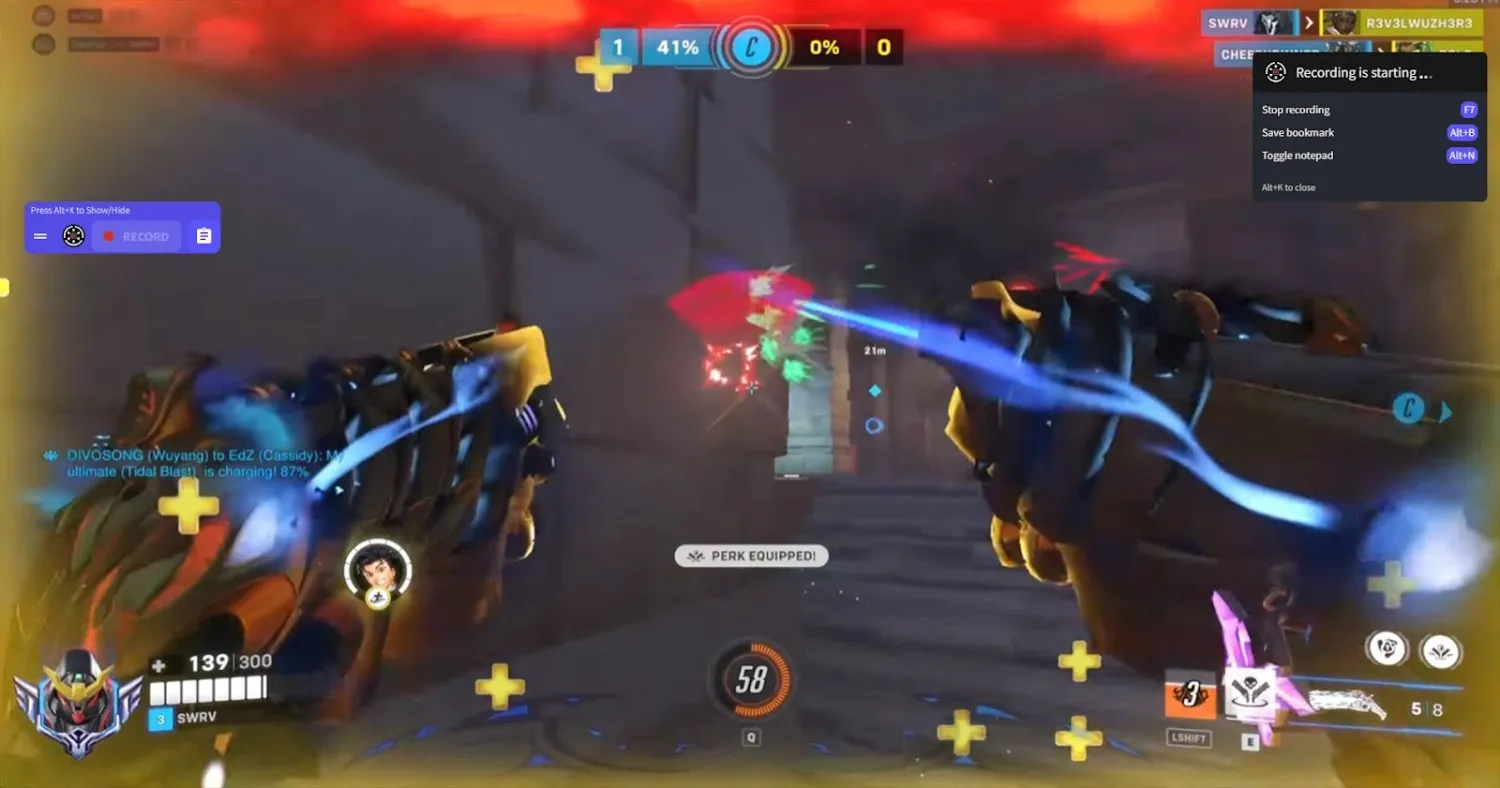
With Insights Capture, you can:
- Record gameplay (and optionally your webcam feed simultaneously) with minimal setup
- Adjust key recording settings such as resolution, frame rate, bitrate, and encoder
- Use built in tools to review, trim, and share your footage immediately after recording
Because it's designed for gamers, Insights Capture stays lightweight and efficient, helping ensure smooth gameplay while your content looks clean.
Other Ways to Record Gameplay Without Lag
Different setups, different tools — these all keep performance stable:
- Xbox Game Bar (built into Windows): a lightweight screen recorder for quick clips with minimal setup. Fine for moments, limited for dual recording.
- NVIDIA ShadowPlay: if you have an NVIDIA GPU, its Instant Replay records with barely any overhead — but webcam and editing options are thin.
- OBS Studio: powerful and free. To record games without lag in OBS, set the encoder to NVENC/AMF, run the game in borderless windowed, and cap your in-game FPS a few frames below your monitor's refresh — that headroom prevents dropped frames.
- A capture card and a second PC: the streamer solution. The second PC handles the entire recording workload, so the gaming PC feels nothing. Overkill for most, unbeatable for stable performance in long sessions.
Whichever route you take, a monitoring tool like MSI Afterburner shows whether CPU, GPU or disk is the bottleneck while you record games.
Pro Tips for Better Recordings
If you want your gameplay and facecam recordings to look professional and stay lag-free, a few simple adjustments make a big difference:
- Use an External Microphone for Clear Audio: An external USB or XLR microphone reduces background noise and improves vocal clarity — great audio matters as much as video.
- Record Short Test Clips Before Long Sessions: A one-minute test catches resolution, frame rate, and audio-sync problems before they cost you an hour of laggy footage.
- Keep Consistent Lighting for Facecam Recording: A ring light or LED panel beats harsh shadows every time.
- Back Up Your Recordings Regularly: Gameplay video eats disk space fast. With Insights Capture, you can upload and organize your recordings directly on the cloud, keeping your SSD free.
Watch more: 10 Best Clipping Software That Doesn't Affect FPS
Why Insights Capture Is the Best Choice for Dual Recording
When it comes to recording gameplay and yourself at the same time without lag, Insights Capture stands out:
- GPU Acceleration to Prevent Lag: advanced hardware encoding (NVIDIA NVENC and AMD AMF) offloads the recording workload from your CPU, keeping FPS stable even in high-definition game capture.
- Handles Both Video Feeds Seamlessly: game and facecam recorded in perfect sync, with automatic setup detection.
- Integrated Editing and Sharing Tools: trim, merge, and export your clips directly inside the app for faster uploads to YouTube, Twitch, or TikTok.
- Includes a VOD Review Tool for Performance Analysis: the VOD Review tool lets competitive players analyze gameplay frame by frame and turn raw recordings into polished highlight reels.
With these features, Insights Capture is more than a game recorder — it's a complete content creation suite for YouTubers, streamers, and esports professionals.
FAQs: How to Record Gameplay and Yourself at the Same Time
1. How do I record my screen without lag?
Use a hardware encoder (NVENC, AMD AMF or Quick Sync), record to an SSD with free disk space, enable Windows Game Mode, and update your GPU drivers. Those four steps fix the vast majority of laggy screen recording.
2. Can I record both gameplay and webcam with one program?
Yes. Insights Capture records both simultaneously with minimal setup — launch your game, enable your camera, and hit record.
3. Why is my screen recording so laggy?
Usually CPU encoding, a full or slow drive, or outdated drivers. Switch to GPU acceleration first; it's the single biggest fix.
4. Should I record at 60 or 120 FPS?
60 FPS for almost everyone. 120 doubles file size and encoder load and only pays off for slow-motion editing or high-refresh competitive review.
5. What's the best resolution for dual recording?
1080p offers the best balance between clarity and system performance — ideal for uploading without straining your PC.
6. Can I edit both gameplay and webcam footage together?
Yes. With Insights Capture's built-in editor, you can trim, sync, and export clips directly after recording — no external tools needed.
7. Is Insights Capture free to use?
Yes — the free version includes professional-quality recording. Upgrades add cloud storage, collaboration, and enhanced editing.
Final Thoughts
Learning how to record gameplay and yourself at the same time doesn't have to involve lag or a complicated setup. Turn on GPU acceleration, record to an SSD, pick sensible FPS settings, and use a game recorder built for performance — with those in place, smooth gameplay and clean footage are the default, not the exception. Contact us to learn how Insights Capture can help you record, edit, and share your content effortlessly.